
This is Part 2 of my mini-series on making R work smoothly inside Cursor since I could not find a single tutorial online. In Part 1, I showed you how to install Cursor and set up R. Now, we'll take it further and run R in Jupyter Notebooks - fully inside Cursor.
Installing Jupyter Notebook
To run Jupyter Notebooks (for R or any other language), you first need to install the jupyter command line tool (More info and alternative installation options). Open your terminal and run:
Bash
pip3 install jupyter

# or pip install jupyter
You can test if it installed correctly by running jupyter notebook in your terminal. This should give you a link to paste into your browser. If that works: great! You're ready to go!
If not, please check out the troubleshooting section below (maybe any of this helps to resolve the issue).
Install R kernel
Now we connect R to Jupyter using the IRkernel.
A kernel is what runs your code inside a notebook. Jupyter supports different kernels for different languages. For R, we use IRkernel. (Later I also show how to set up a bash kernel).
Inside R (either by typing R in your terminal or in your installed Cursor .R file), run:
R
install.packages("IRkernel")
IRkernel::installspec()
For more information about IRkernel, check out the IRkernel documentation.
Selecting installed kernels in Cursor
Once IRkernel is installed, you can create a new .ipynb file in Cursor.
When you open it, Cursor should prompt you to install the Jupyter Notebook extension (if it hasn't already).
To switch to the R kernel: Click Select Kernel (top right) → Jupyter Kernel → Choose R. (You may need to refresh the kernel list by clicking the refresh button on the top right of the kernel selection menu.)
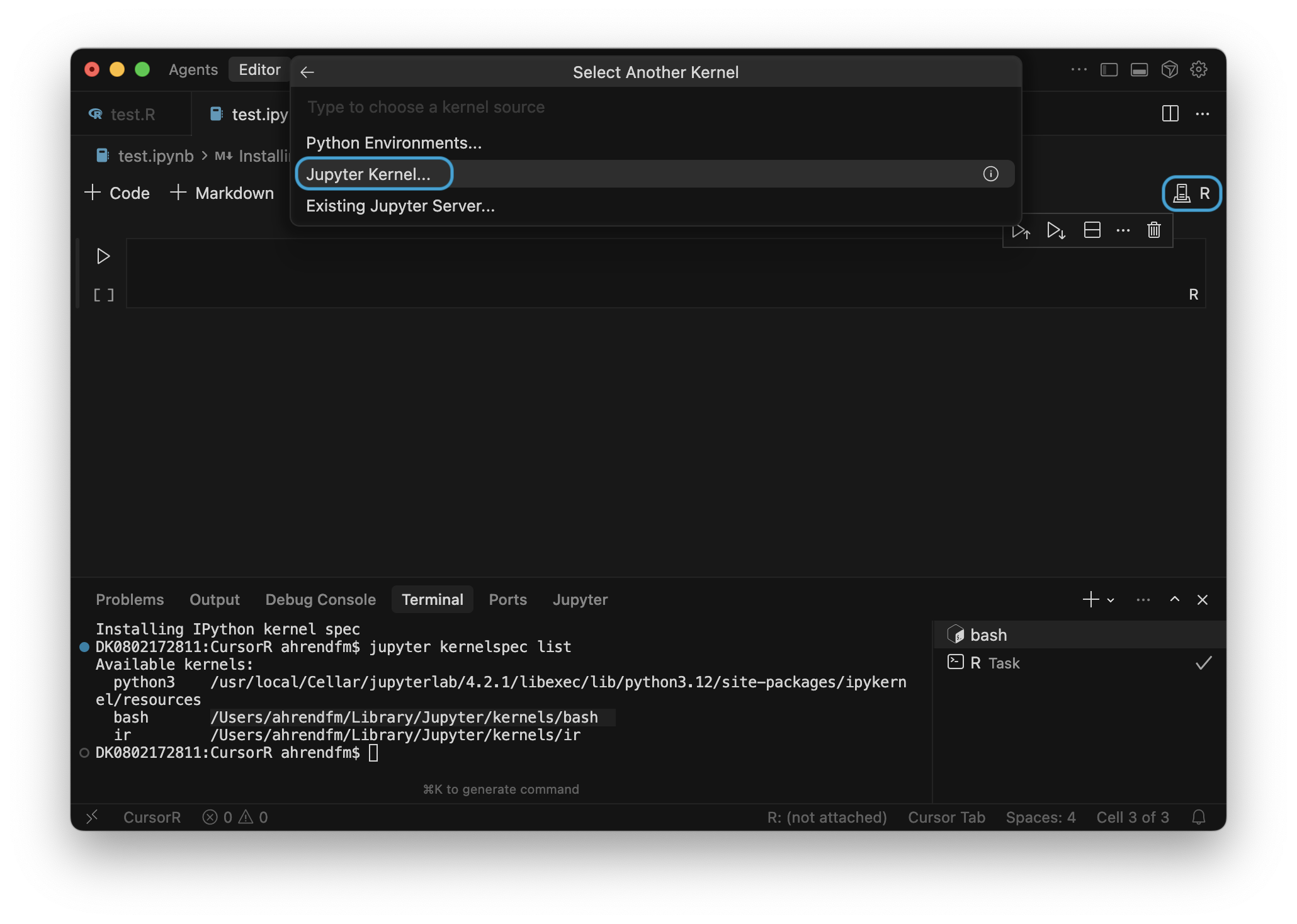
If you don't see the R kernel right away, restart Cursor and try searching for R in the kernel selection menu.
You can also check your installed kernels with:
Bash
jupyter kernelspec listIf ir appears (see Terminal section of image below), your R kernel is ready!
Helpful addition: Install bash kernel
Sometimes it's useful to run bash commands directly in a Jupyter Notebook (e.g. for preprocessing or documenting data). You can install a Bash kernel like this:
Bash
pip install bash_kernel

python -m bash_kernel.install
After installing, click Select Kernel (or where the current kernel is selected as in the image below), and you should see "Bash" as an option (or you can search for it in the Jupyter Kernel...-section) as shown below:
Troubleshooting
Here's a checklist if something isn't working:
- pip/python not found → Try running pip3/python3 instead. Otherwise, make sure you have Python installed. Download from python.org, you'll need it for Jupyter and possibly to also use the Python kernel.
jupytercommand not found → Install withpip3 install jupyter(see Jupyter installation documentation for more options). Otherwise, if you received Warnings during installation about the installation location not being in PATH, you may have to tell your shell manually where it can find the jupyter exectuable. Fix this by adding the following to your shell configuration file (get it by either runningnano ~/.bashrcornano ~/.zshrcin your terminal):export PATH="$HOME/Library/Python/3.9/bin:$PATH"(this is how it looked for me in the warning, you may have to adjust to your line with the right path (should be in the installation warning). Then, reload the shell configuration file:source ~/.bashrcorsource ~/.zshrc.- Can't install R packages → Try
update.packages()and install dependencies one-by-one. If asked to compile from source and you're unsure, answer "No" - the older version usually works fine. - R kernel not showing in Cursor → Restart Cursor, check with
jupyter kernelspec list - Wrong R version in use → Run
R.version.stringand compare with what Jupyter uses - Different
.libPaths()→ You can align R paths in Cursor and RStudio if needed
For additional help with Jupyter Notebooks, refer to the official Jupyter Notebook documentation.
Related Articles